

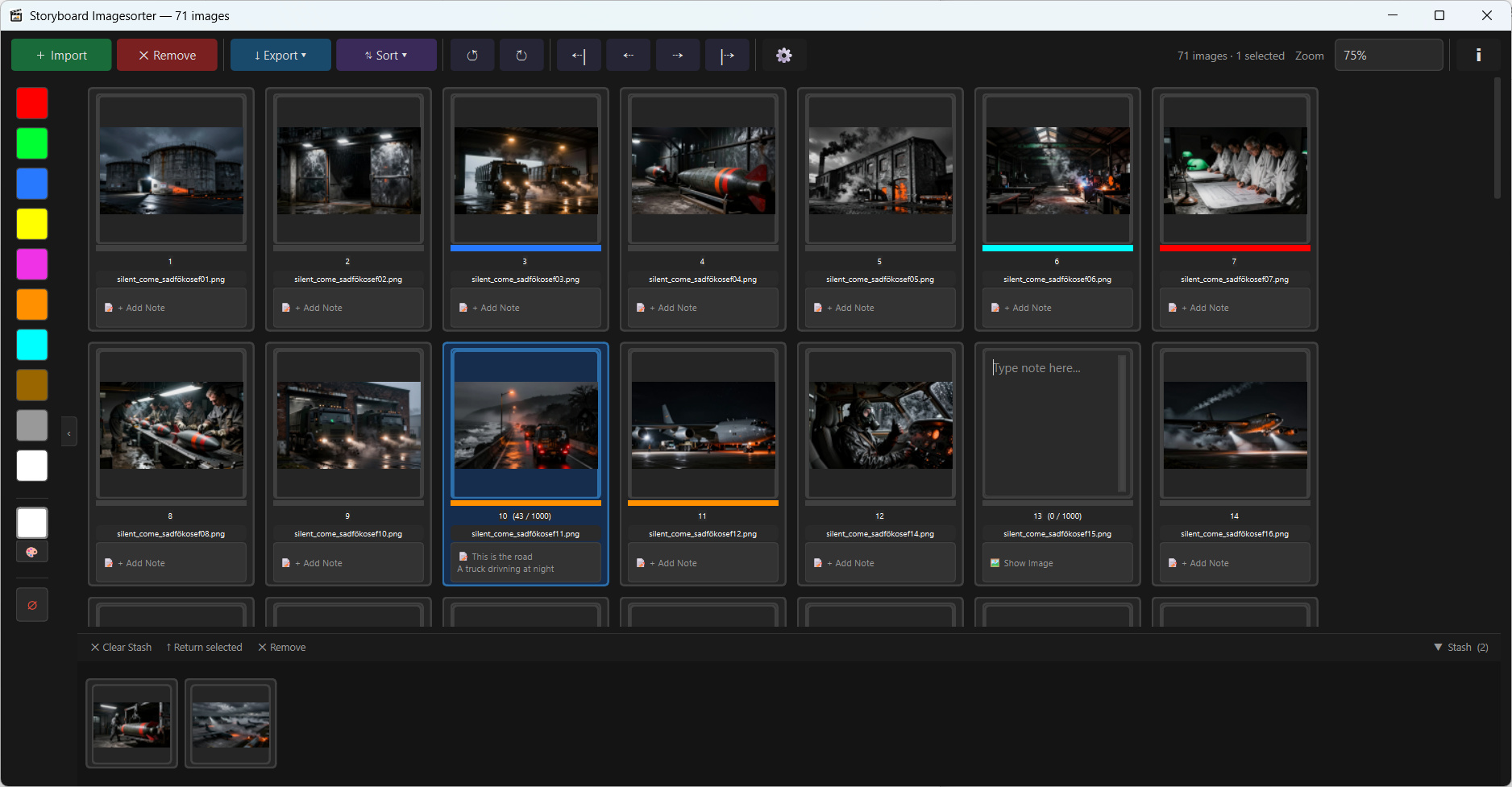
Organize your storyboard frames and image sequences quickly and visually.
Storyboard Imagesorter is a lightweight, intuitive tool designed for artists, animators, and previs professionals. It allows you to take image files and turn them into an organized sequence of images. You can work with color tags, text notes, and export layouts.
The project is open source under GPL license, and can be found at Github too: https://github.com/ReinerBforartists/storyboard_imagesorter
Watch the release video at Youtube:
https://www.youtube.com/watch?v=CoYpHI-qmJA
⇩ Download
04.06.2026 – Storyboard Imagesorter Version 1.0.0
 Windows
Note: The installer is not digitally signed currently, since this would cost a lot of money. Windows may notice that this is a potentially dangerous software, and gives a warning on install. The installer is of course not dangerous and safe. Proceed and install safely.
You can alternatively use the zipfile. The content is identical.
 Linux
Linux
Note: the Linux versions are built with Debian 12. So it should work on most actual distributions. Deb of course on debian based systems.
Motivation
I built this tool because I needed a way to sort images with essential storyboard features. As someone working in AI filmmaking, my workflow involves generating hundreds of images based on a story and then selecting the best frames for a sequence.
I was unhappy with the existing solutions: I had to choose between simple image viewers that were too limited for proper sequencing and full fledged storyboard tools that were far too complicated for this specific task.
Storyboard Imagesorter fills that gap. It is a simple tool for a simple task, yet powerful enough to do actual storyboarding with.
User Guide (Workflow)
1. Import your images
- Drag & Drop: Drag image files directly into the window, or use the + Import button.
- Auto-restore: If the folder you import from already contains a
_sorter_data.txtfile, you can restore colors and notes by importing it.
2. Organize your sequence
- Reorder: Click and drag any image to a new position.
- Move Groups: Select multiple images and use the arrow buttons in the toolbar to shift them left or right.
- The Stash: Images that don’t belong in your current sequence can be parked in the Stash at the bottom of the window. They stay available and can be returned to the main view at any time.
3. Add colors and notes
- Color tags: Use the sidebar on the left to quickly tap a color onto your selected images (e.g., Blue for “Close-up”, Red for “Action”).
- Notes: Click 📝 Add Note on any image card to add descriptions, camera angles, or timing info.
4. Edit images and see changes live
Double-click an image to open it in your system’s default editor. Once you save there, the thumbnail in Imagesorter updates automatically.
5. Export and “Save” your work
Use the ↓ Export menu to create a numbered image sequence, a Contact Sheet, or a Storyboard List with your notes alongside the artwork.
Your originals are never touched. Exporting always creates copies in a new folder — your source files stay exactly where they are.
Saving your progress: Every export also writes a
_sorter_data.txtfile next to your images. This file stores all your colors and notes. To reload a previous session, drag that file into the application window.
⌨️ Keyboard Shortcuts
Note that most shortcuts are optional.
Main View
| Shortcut | Action |
|---|---|
Space | Open / Close Full-screen Lightbox |
Ctrl + A / Ctrl + D | Select All / Deselect All |
Ctrl + O | Open Import dialog |
Ctrl + Z / Ctrl + Y / Ctrl + Shift + Z | Undo / Redo last action |
C | Clear colors from selected images |
Delete | Remove selected images |
W | Move selected images to Stash |
← / → (Arrows) | Move selection left or right |
Ctrl + ← / → (Arrows) | Move selection to Start / End |
F | Focus view on first selected image |
Home / Pos 1 | Jump to first image |
End / Ende | Jump to last image |
Page Up / Page Down | Scroll through images |
Tab | Toggle Stash open / closed |
B | Toggle Sidebar open / closed |
+ / - | Zoom in / out of the canvas |
Scroll | Scroll through images |
Shift + Scroll | Fast scroll through large sequences |
Right-Click (Color) | Select all cards with this color |
Shift + Right-Click (Color) | Add color to current selection |
Lightbox Mode (Full-screen)
| Shortcut | Action |
|---|---|
Esc / Space | Close Lightbox |
← / → (Arrows) | Previous / Next image |
Scroll | Previous / Next image |
W | Move current image to Stash |
Delete | Remove current image |
Mouse & Interactions
| Shortcut | Action |
|---|---|
Shift + Click | Extend selection |
Ctrl + Click | Toggle single image selection |
Mouse Drag (empty area) | Rectangle / lasso selection |
Drag Image(s) | Reorder via Drag & Drop |
Double-Click | Open in system viewer |
Drag → Stash | Move to stash |
Double-Click Stash | Return image to main view |
⚙️ Installation & Execution
Windows
- Download
storyboard_imagesorter.zipfrom the Releases page. - Extract the archive.
- Run
storyboard_imagesorter.exedirectly — no installation required.
Linux
A .deb package is available. Alternatively, run from source using the instructions below.
macOS & Linux (Source Distribution)
For Linux there is a Deb available. No macOS binary is available at this time. You can run both from source via a Python virtual environment:
Clone this repository:
git clone https://github.com/ReinerBforartists/storyboard_imagesorter
cd storyboard-imagesorter
Set up a Virtual Environment (Recommended):
# Linux / macOS
python3 -m venv venv
source venv/bin/activate
Install Dependencies:
pip install -r requirements.txt
Run the Application:
cd storyboard_imagesorter
python storyboard_imagesorter.py
🛠️ Technical Specifications
For developers and technical users:
- Core Stack: Python 3.10+ and PyQt6.
- Architecture:
- Implements the Command Pattern for a robust Undo/Redo system across all manipulations (sorting, tagging, moving, deleting).
- Uses a custom Flow Layout engine for dynamic image arrangement.
- Features a background File Watcher service to monitor file system changes for real-time thumbnail synchronization.
- Data Management: Metadata (colors/notes) is handled via a lightweight text-based exchange format (
_sorter_data.txt), allowing for easy project reloading without proprietary database overhead.
Feedback and Pull Requests are welcome!
License: GNU General Public License v3.0 · Copyright © 2026 Reiner Prokein (Haizy Tiles)
History
04.06.2026 – Storyboard Imagesorter Version 1.0.0
No further changes except the version number. The software is now productive.
02.05.2026 – Storyboard Imagesorter Version 0.9.2
Bugfixes and refinements. Like a better hotkey to clear the color, adding hotkeys for open, and refactoring the theming under the hood. The lightbox now also allows you to move images to the stack, or remove them. And you can now drop new images at the mouse position, which makes it more easy to work with several source folders. It should now also be stable enough to be used in production.
https://github.com/ReinerBforartists/storyboard_imagesorter/releases/tag/v0.9.2
24.04.2026 – Storyboard Imagesorter Version 0.9.1
This release contains bug fixing, refining, fixing regressions, and a handful new useful features. For example, open the last used export folder. Simplified export dialogs. Focus on selection with hotkey F. Edge scrolling. Limiting text so that the Contact Sheet size does not explode. And much more.
https://github.com/ReinerBforartists/storyboard_imagesorter/releases/tag/v0.9.1
Still just a portable Windows binary. At Mac and Linux please go the Venv way.
17.04.2026 – Initial release.
Version 0.9.0. The software is now public and in Beta.