

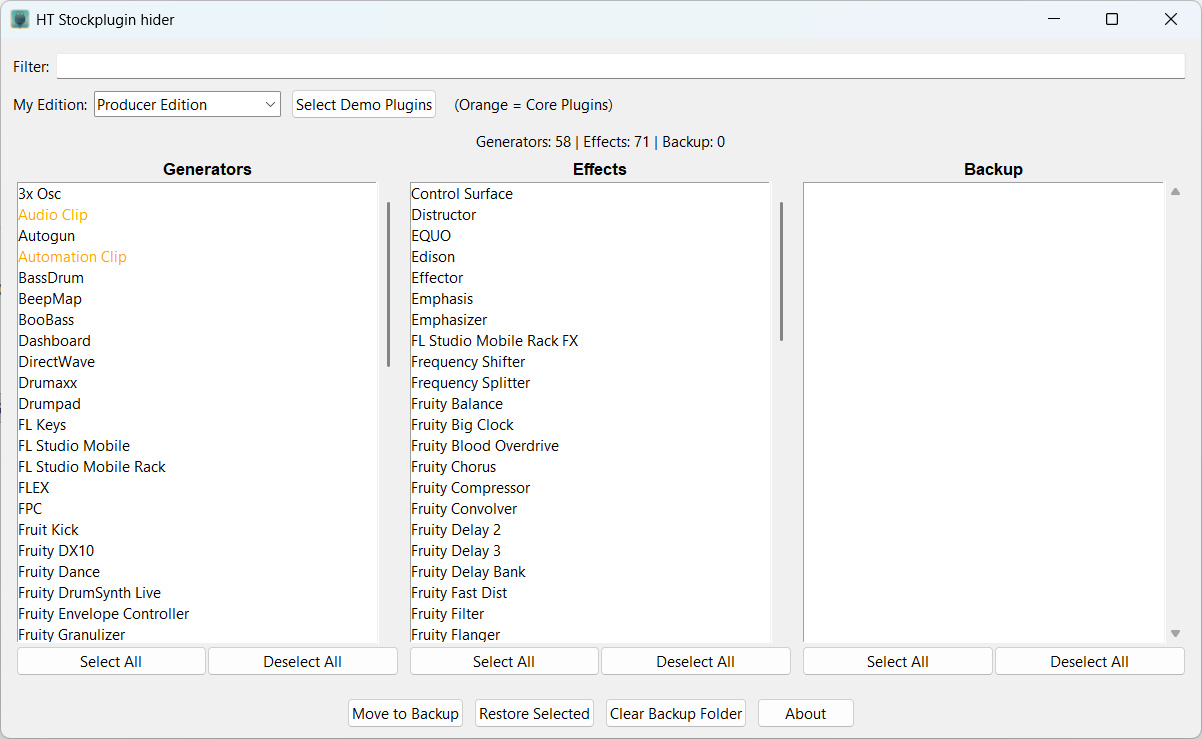
HT Stockplugin Hider is a lightweight free and open source utility for FL Studio that lets you hide stock plugins from the plugin browser. This is especially useful for removing demo plugins that can’t be disabled through FL Studio’s plugin manager.
The project is open source under MIT license, and can be found at Github too: https://github.com/ReinerBforartists/HT_Stockplugin_hider
Release video at Youtube:
https://www.youtube.com/watch?v=aSUhQwGnsl4
⇩ Download
08.04.2026 – Version 1.0.0 – 10.5 Mb
The Problem
FL Studio displays all stock plugins in the plugin browser and does not allow hiding them through the Plugin Manager. Unlike third-party VSTs, stock plugins ignore the visibility toggle — they always show up, including demo-only plugins that are not part of your edition.
The Solution
HT Stockplugin Hider moves the .fst and .nfo files of unwanted plugins out of the FL Studio Plugin Database folder into a backup location. FL Studio won’t load what it can’t find. Plugins can be restored at any time with a single click.
As a side effect, once a plugin has been moved and restored, FL Studio recognizes it as a newly added plugin — meaning it can finally be toggled on and off through the Plugin Manager like any other plugin.
Note: No files are permanently deleted. And the plugins arent’t touched at all. Plugins are only hidden by moving their database entries out of FL Studio’s plugin folder. They can be restored at any time.
Features
– Lists all installed FL Studio stock plugins, separated into Generators and Effects
– Select your FL Studio edition and automatically highlight all plugins that are demo-only
– Move plugins to a backup folder to hide them from FL Studio
– Restore plugins from the backup at any time
– Double-click a backup entry to restore it instantly
– Filter plugins by name
– Detects duplicate plugins on restore (e.g. after FL Studio reinstalls its plugin database)
Supported Editions
– Fruity Edition
– Producer Edition
– Signature Bundle
– All Plugins Edition
Requirements
– Windows 10 / 11
– A installed version of FL Studio (any version that uses the standard plugin database path)
Installation
Download the latest release, unzip and run `HT_Stockplugin_Hider.exe`. No installation required.
Backup Location
Plugins are moved to:
%APPDATA%\\HTstockpluginhiderBackup
Nothing is permanently deleted. You can always restore plugins from within the app or by manually copying files back. It is not necessary, since the Plugin manager can also add these files back by simply turning on these plugins. But is handy while editing the list.
Usage
1. Launch the app
2. Select your FL Studio edition from the dropdown
3. Click \*\*Select Demo Plugins\*\* to automatically select all plugins not included in your edition
4. And / Or mark single plugins in the list that you want to hide
5. Click \*\*Move to Backup\*\* to hide them from FL Studio
6. Restart FL Studio
To restore plugins, select them in the Backup list and click \*\*Restore Selected\*\*, or simply double-click an entry.
License
MIT
Devlog
08.04.2026 – Version 1.0.0
No further problems detected. Just a minor code cleanup under the hood. So this is the productive version 1.0.0.
03.04.2026 – Version 0.9.1
A handful last minute fixes
- Hint at the bottom that you need to restart FL Studio to apply the changes #5
- Security check if the file is moveable #4
- Orange items should not be selected by select all. #3
- Still Non FL Studio plugins in the list #2
- Failed to execute script after image-line folder not found #1
- Updated Readme
01.04.2026 – Version 0.9.0
Initial release